
Problem: VOS is not responding to ARP requests.
VOS has default setting of only to process 300 ARP requests per second. If VOS receives more than 300 ARP requests per second when combined across all interfaces, it will drop ARP requests exceeds the limit.
Run below VOS CLI command to confirm ARP requests are received more than current ARP rate-limit configured on VOS:
CLI: unhide full
CLI: show statistics internal arp

Check for RLEXCEEDED column. If it is incrementing, ARP requests are received more than currently configured ARP rate-limit on VOS.
If RLEXCEEDED is not incrementing but still there is no response to ARP requests, Please check if ARP requests are received for correct subnet. Please also check if mbuf(packet buffers) is exhausted by looking at alarms and/or by checking 'Packet Buffer Depletion' under 'System->Appliance anomalies'.
If mbuf(packet buffers) issue is seen, please contact Versa support.
Follow below solutions if ARP limit is exceeded.
Solution-1:
If there is wider subnet like /21 or /16 configured on one or more interfaces on VOS, it is possible that too many hosts in subnet sending too many ARP requests. Change the subnet to more smaller subnet like /24.
Solution-2:
If changing subnet to smaller is not possible, increase the ARP rate-limit to higher value. Find the rate at which ARP requests are received (you can check current ARP requests per second by doing tcpdump or running above 'show statistics internal arp' every seconds and count the difference between RECEIVED packets. Once you find current ARP requests per second sent to VOS, increase ARP rate-limit accordingly on VOS:
Configuring ARP Rate Limiting:
Address Resolution Protocol (ARP) flooding can saturate a device's CPU, leading to control plane instability. To protect the system, we use two primary mechanisms for rate limiting: Global ARP Rate Limits and Control Plane Protection (CoPP).
Understanding the Hierarchy of Limits:
When both a Global ARP limit and a CoPP limit are configured, the system follows a "most restrictive" policy. The device will automatically enforce whichever value is lower (more aggressive).
Example Scenario:
CoPP ARP Limit: 500 pps
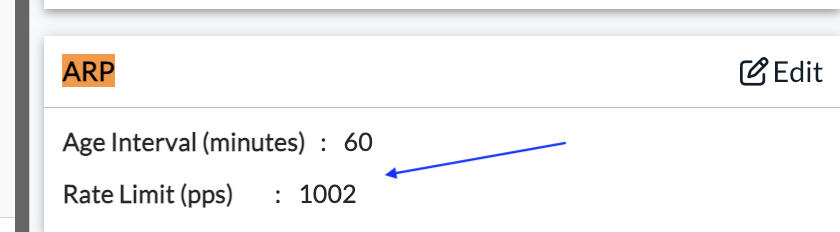
Global ARP Limit: 1002 pps
In this case, the system will cap ARP traffic at 500 pps.
Verification Commands:
To check your current running configurations, use the following CLI commands:
1. Check CoPP Settings
cli> show configuration system service-options control-plane-protection | details | match arp
# Output: arp 500;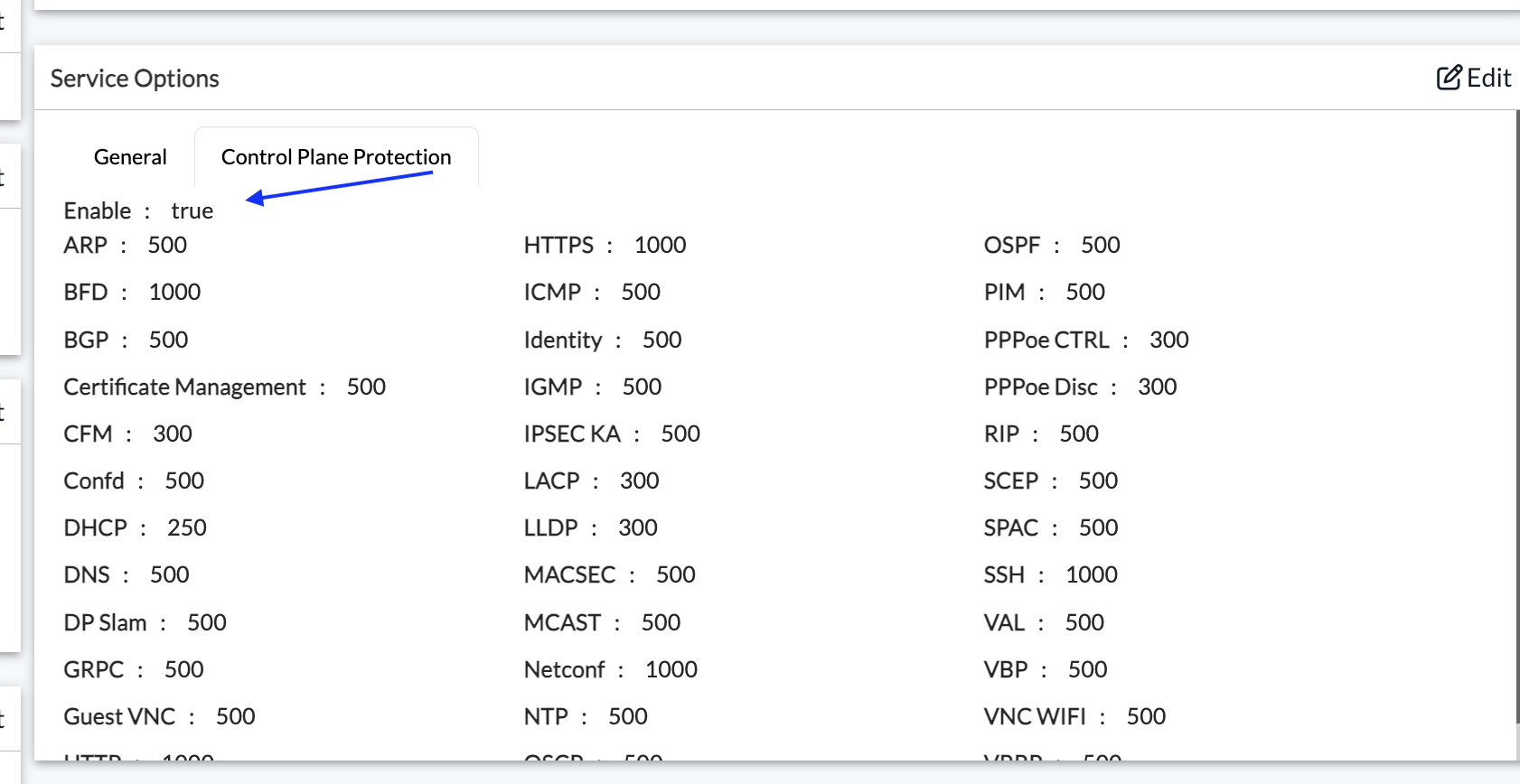
2. Check Global ARP Limits
cli> show configuration system arp rate-limit
# Output: rate-limit 1002;
Configuration Notes:
Default State: Control Plane Protection is disabled by default. When enabled, it allows for granular threshold setting across multiple protocols (ARP, ICMP, BGP, etc.) to ensure no single protocol can overwhelm the CPU.
Service Impact: Updating these rate limits is hitless; it does not require a service restart.
Best Practices: While increasing the rate limit may provide temporary relief during a spike, it is a "band-aid" fix. Always investigate the source of the flood (LAN vs. WAN) to identify the root cause and prevent broader service disruption.