
The request workflow for URL Category and Reputation Change is now available on guardian.versanow.net. Any Versa user can submit a URL category and reputation request, and the Versa Research team will review and approve it before the update is applied. Anybody can submit a URL
For Customers
The Guardian portal (guardian.versanow.net) is accessible to Versa users only. If you would like a URL's category or reputation reviewed or changed, please reach out to your Versa Systems Engineer (SE) or open a case with Versa TAC. They can submit the request on your behalf, and the Versa Research team will review it.
How to Submit a Request (Versa Users)
- Log in to the Guardian UI using Entra ID or Versa IDP.
- Navigate to URL Reputation → Change Request.
- Enter the URL/Domain. You can select up to 5 categories for one URL; reputation is optional.
- Set the confidence (1–100) and add a justification, then click Submit.
- Once submitted, the request appears in the Your Requests section with a Pending status.
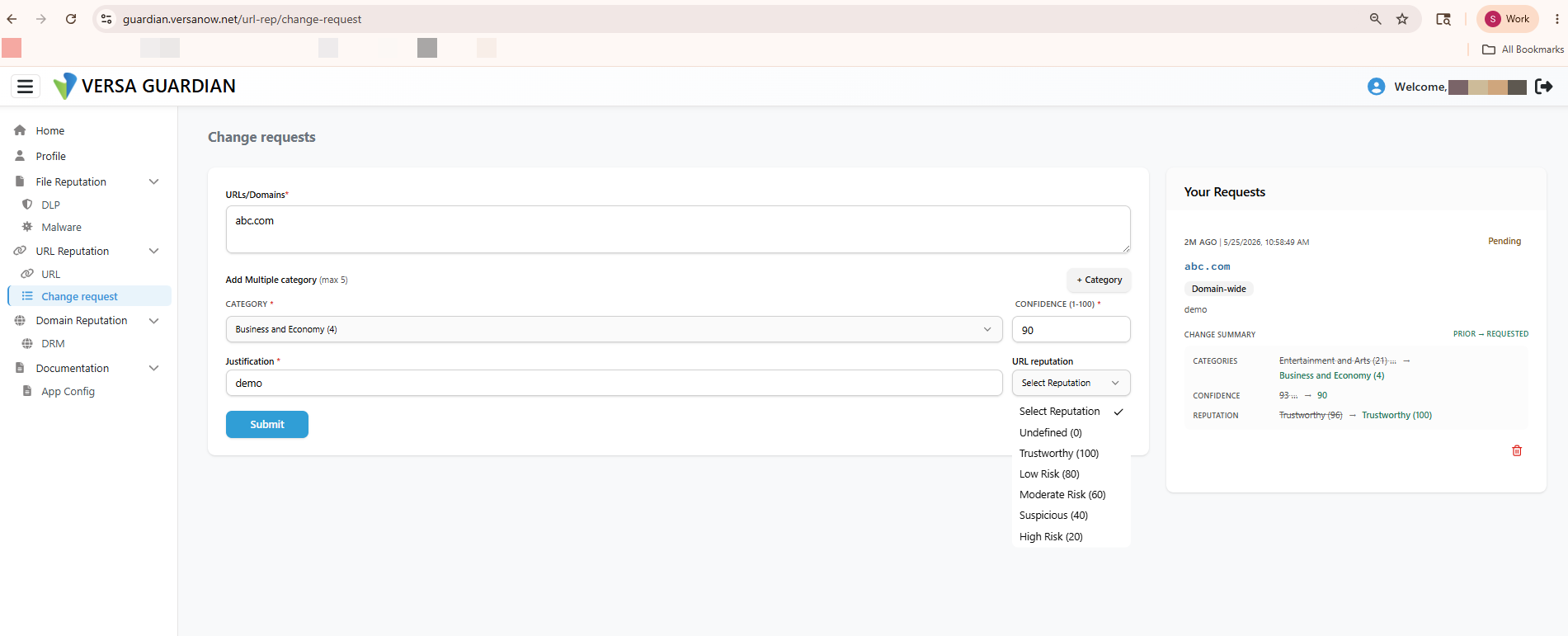 Guardian > URL Reputation > Change Request submission form (URL/Domain, categories, confidence, justification, Submit; with the Your Requests panel showing the Pending request).
Admin / Operator View (Security Team)
- Admins see Approve and Reject buttons to action a request.
- The Pending, Approved, Rejected, and Cancelled tabs are visible only to Admins.
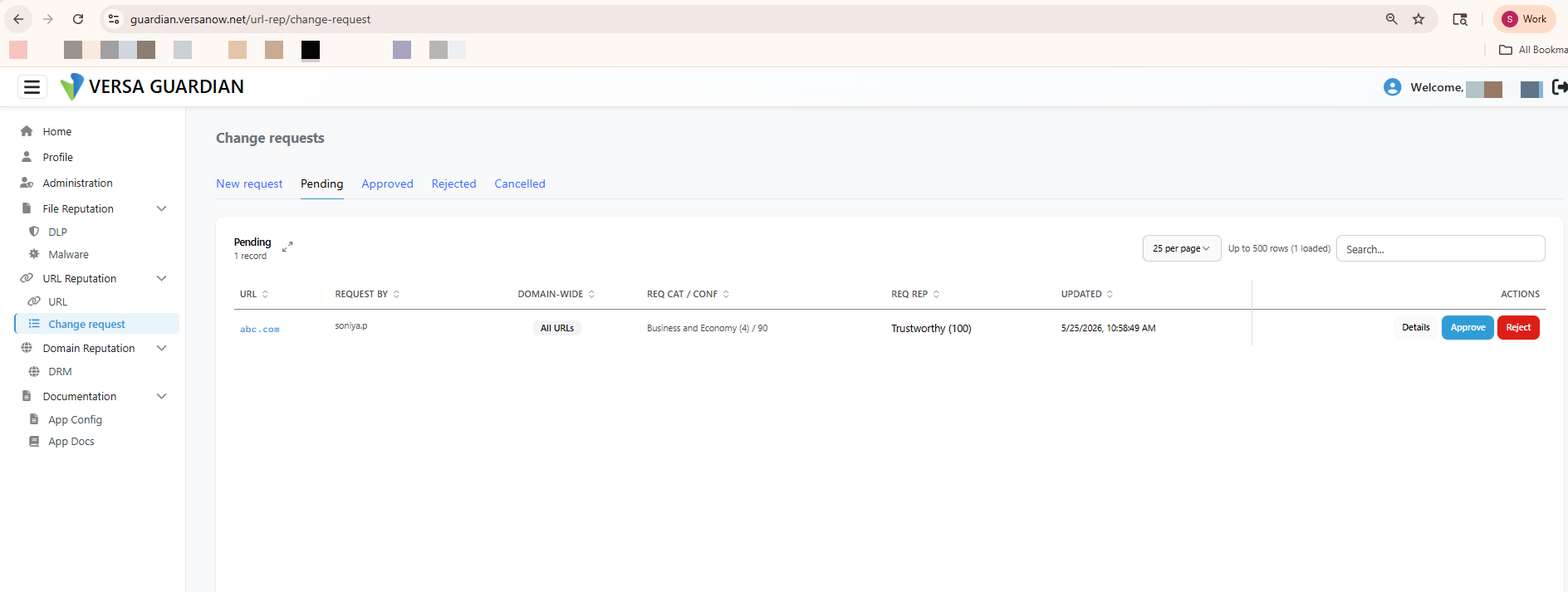 Admin view: Change requests Pending tab showing a record with Details / Approve / Reject actions, and the Pending/Approved/Rejected/Cancelled tabs.
Notes
- Email notifications are sent to the corresponding approvers when a request is created, enabling the Security/Research team to review and take action.
- The category and reputation update is applied only after the Versa Research team approves the request.
-----------------------------------------------------------------------------------------------------------------------------------
SPACK-DB update requires the users to reach out to dbchange@brightcloud.com with the below details.
-> Database-version: <Can be picked from the below output of Branch>
-> Database-date: <Can be picked from the below output of Branch>
-> Customer: Versa Networks
-> URL:
-> Current classification:
-> Expected classification:

Once approved the next or the subsequent spack release from Versa will bundle the newer db from Brightcloud for spack based url-lookup.