
Purpose:
This document provides a structured, customer-facing troubleshooting guide to resolve connectivity issues between Versa Operating System (VOS) and Versa Management Server (VMS). Please follow the steps in the order listed below.
Step 1: Verify VMS Status on VOS
Check the VMS session status from the branch device:
show orgs org-services <Org-Name> vms status
Expected Result
Status should display Connected
If status shows Connected, VOS to VMS connectivity is up.
If status shows not connected, proceed to the next steps.
Step 2: Verify FQDN Resolution
Ensure the configured VMS FQDN resolves correctly from the appropriate routing instance:
ping <VMS-FQDN> routing-instance <Routing-Instance>
If resolution fails:
Verify DNS configuration
Confirm routing-instance reachability
Check address manager resolution:
vsh connect vsmdshow vsf tenant all brief | grep <your tenant>
<collect tenant ID from above output>
vsh connect addrmgr show address <Tenant ID>
Confirm:
Correct IP address
Resolved state
Step 3: Verify Network Reachability
3.1 ICMP Test
Get routing instance using following CLI on VOS:
Or from director GUI:
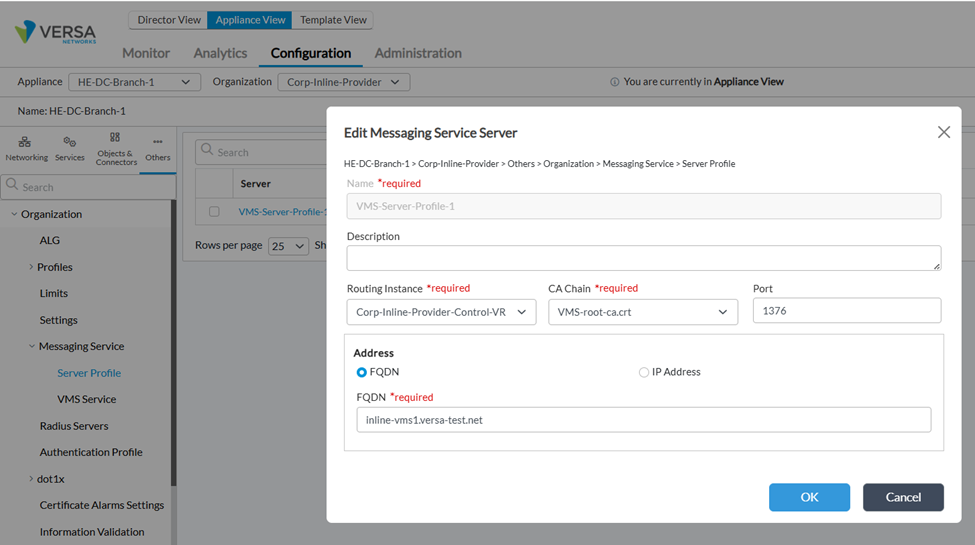
Ping using routing instance found using above CLI or GUI:
ping <VMS-FQDN> routing-instance <Routing-Instance>
If ICMP is blocked, test TCP connectivity.
3.2 TCP Port Test (Port 1376)
From the relevant namespace:
sudo ip netns exec <Routing-Instance> bash
Then run:
while true; do
  echo "$(date) - Checking port 1376..."
  nc -zv -w 3 <VMS-FQDN> 1376
  sleep 2
done
Expected Result
Connection to <VMS-FQDN> 1376 port [tcp/*] succeeded!
If unsuccessful, proceed to Controller validation.
Step 4: Validate Controller Path (If Traffic Traverses Controller)
If VMS connectivity is via Controller:
4.1 Check Session on Controller
Verify session exists between branch device and VMS IP on port 1376.
Use Monitor Dashboard or CLI 'show orgs org <org> sessions extensive | select destination-port 1376'
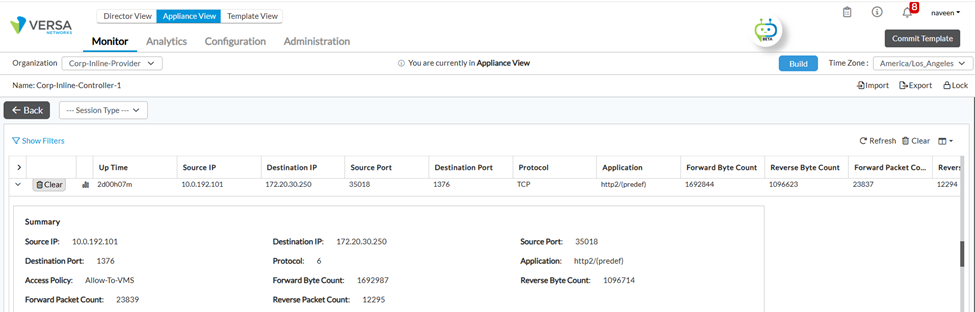
If session is not present:
Traffic is not reaching Controller.
If session exists:
Run
tcpdumpon egress interface toward VMS.Confirm packets are leaving Controller.
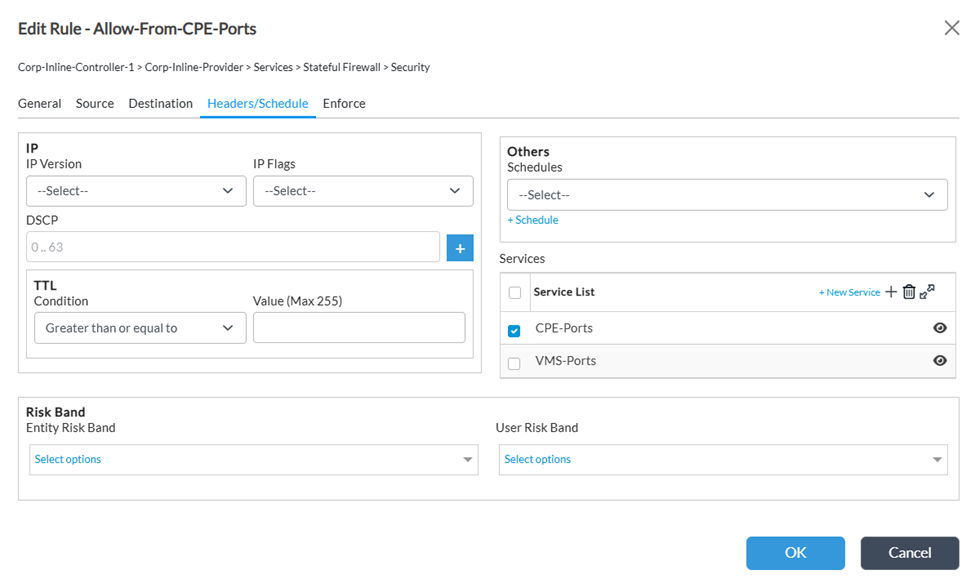
4.2 Firewall Validation
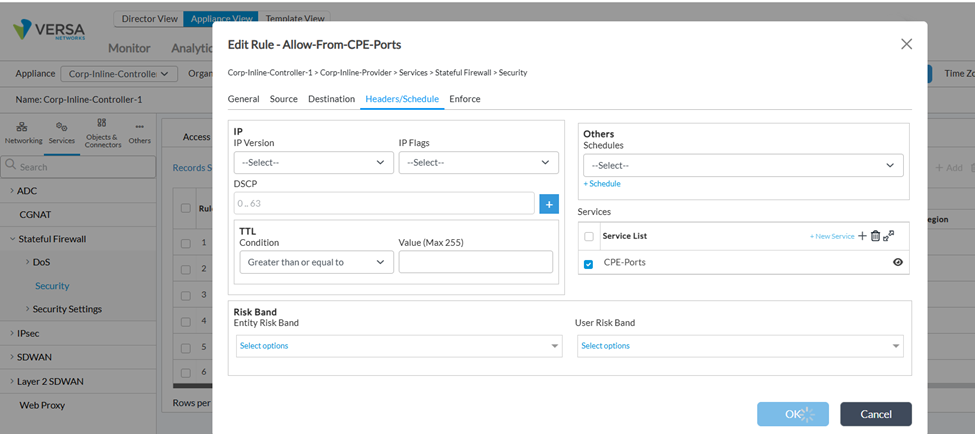
If packets reach Controller but are not forwarded:
Check security policies.
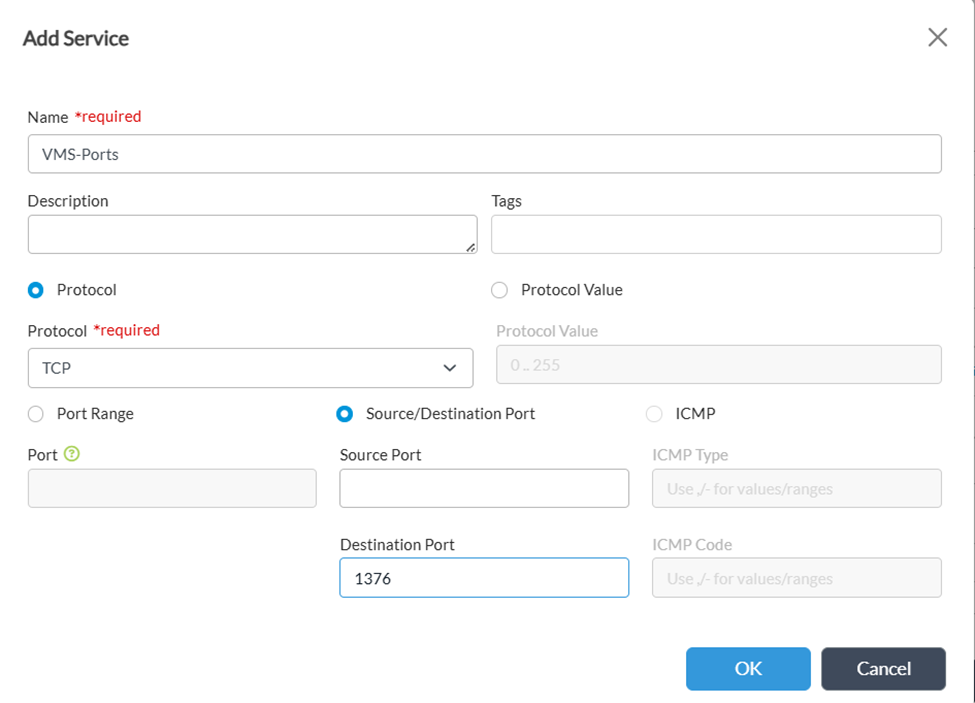
Update Allow-From-CPE-Ports policy.
Add required VMS service (port 1376).
Step 5: Verify Packet Reception on VMS
On the VMS server:
Run
tcpdumpon the appropriate interface.Confirm packets are received.
Validate reverse routing path back to branch device.
Step 6: Validate Certificates (Common Root Cause)
If network reachability is confirmed but VOS–VMS session does not establish, verify certificates.
6.1 Check Server Certificate on VMS
On VMS:
openssl x509 -in /opt/versa/vms/certs/server-cert.pem -text -noout
Verify:
Common Name (CN)
Subject Alternative Name (SAN)
Example:
Subject: CN = inline-vms1.versa-test.net
X509v3 Subject Alternative Name:
DNS:inline-vms1.versa-test.net
DNS:inline-vms1-elastic.versa-test.net
DNS:inline-vms2.versa-test.net
Important
The IP or FQDN used for connection must match either CN or SAN.
6.2 Verify CA Installed on VOS
On VOS:
show orgs org-services <Org-Name> crypto pki ca-chains <CA-Name>show orgs org-services <Org-Name> crypto pki ca-chains <CA-Name> | match "Issuer CN"show orgs org-services <Org-Name> crypto pki ca-chains <CA-Name> | match "Subject Alternative Name"
Confirm:
Issuer CN matches
SAN values (if applicable)
Resolution
If CN or SAN does not match:
Regenerate the certificate with correct CN/SAN values.
Install updated certificate on VMS.
Install matching CA chain on VOS.
Restart services if required.
Re-validate connectivity.
Step 7: We can also check versa-service logs on VOS and get the issue why VOS-VMS connectivity is not up:
Need to check what is the error in VOS - /var/log/versa/versa-service.log.
7.1 i/o time out issues:
On VOS:
vMsClientServiceConnectThread:1372 Message Server connect failed(retrying) for token ClientAuth:mobility, error rpc error: code = Unavailable desc = connection error: desc = "transport: Error while dialing: dial tcp4 172.17.254.254:1376: i/o timeout"
Verify:
Reachability is there to VMS server over port 1376
If step 3.2 is successfulucessful, we should not be seeing this error.
7.2 Cert mismatch issues:
On VOS:
Unable to connect to the server: tls: failed to verify certificate: x509: certificate is valid for kubernetes, kubernetes.default, kubernetes.default.svc, kubernetes.default.svc.cluster.local, vms-1,vms-1-elastic not vms-vos.versa.com
Verify:
SAN values for server cert in VMS
(openssl x509 -in /opt/versa/vms/certs/server-cert.pem -noout -text)
7.3 FQDN not resolved issues:
On VOS:
ERROR [0x200] vmsctrl_init_grpc_to_vms_srvr_for_svc:340 Resolved IP not available for vms_prof 40 fqdn vms-vos.versa.com from tenant 1
Verify:
If Step 2 above does resolve to a valid IP address, this issue should not be seen in VMS
Successful log message after connection is up in Versa service logs:
vmsctrl_lef_vms_status_handler:84 tenant_id:1 vms_prof:VMS (41) : VmsServerStatus_t { isConnected: True }
cli status command:
admin@DC1-GW1-cli> show orgs org-services Versa vms status server VMS
Server profile name : VMS
IP Address : n/a
FQDN : vms-vos.versa.com
Port number : 1376
Service name : passive-authentication
----------------------------------------------------------------
Session Details:
-----------------
gRPC Handle : 100001
Creation Time : 2026-02-17, 16:31:22
Number of disconnects : 0
Status : Connected
Connect time : 2026-02-27, 14:12:42
Number of reconnects : n/a
Last reconnect attempt time : n/a
Last reconnect status message : VMSAPI_OK
Previous connect time : 2026-02-27, 14:09:50
Disconnect time : 2026-02-27, 14:11:44
Disconnect error message : VMSAPI_ERR_UNKNOWN
Last sequence number received : 0
VOS-VMS latency : 0 msec
Timestamp of last received message : 0-12-31, 16:07:02
Current Statistics:
--------------------
Messages received : 0
Messages dispatched : 0
Messages dropped : 0
Messages published : 0
Publish errors : 0
Total Statistics:
------------------
Messages received : 0
Messages dispatched : 0
Messages dropped : 0
Messages published : 0
Publish errors : 0
Failovers detected : 0
If none of the above help debug the VOS-VMS connectivity issue, please enable debug and contact Versa Support. Enable debug on VOS:
 set debug vms level all
 set debug vms all-flags
 set debug vmsctrl
 set debug vmsctrl level all
 set debug vmsctrl all-flags
Summary Checklist
✔ VMS status shows Connected
✔ FQDN resolves correctly
✔ Port 1376 reachable
✔ Controller not dropping traffic
✔ VMS receives and responds to packets
✔ CN/SAN matches connection FQDN
✔ Correct CA installed on VOS
Summary Checklist
Use this checklist to confirm all validation steps have been completed before closing the issue or escalating to Versa Support.
Checkpoint | Expected | Verified |
VMS status shows | Connected | ☐ |
FQDN resolves correctly from routing instance | Pass | ☐ |
TCP Port 1376 reachable from VOS | Pass | ☐ |
Controller not dropping or blocking traffic | Pass | ☐ |
VMS receives packets and responds to packets | Pass | ☐ |
Certificate CN/SAN matches the connection FQDN | Pass | ☐ |
Correct CA chain installed on VOS | Pass | ☐ |
Need Additional Assistance? If the issue persists after completing all steps in this guide, contact Versa Networks Technical Support with the following information:
|