
[PDF version is attached to this KB]
This document focuses on creating a customized MSI file to pre-populate the Enterprise Name and Portal FQDN, ensuring that end-users are automatically redirected to the configured SSO for registration without manual input.
High Level Design This process involves editing the standard MSI installer using the Orca tool to inject a specific property (WRAPPED_ARGUMENTS). This property passes the necessary Enterprise and SSO parameters to the client during installation.
Step-by-step guide
- Download the necessary installer and tools (Versa SASE Client MSI and Orca). SASE Client | Powered by Box
- Generate a New Transform using Orca. Windows SDK downloads - Windows apps | Microsoft Learn
Download and Install Orca
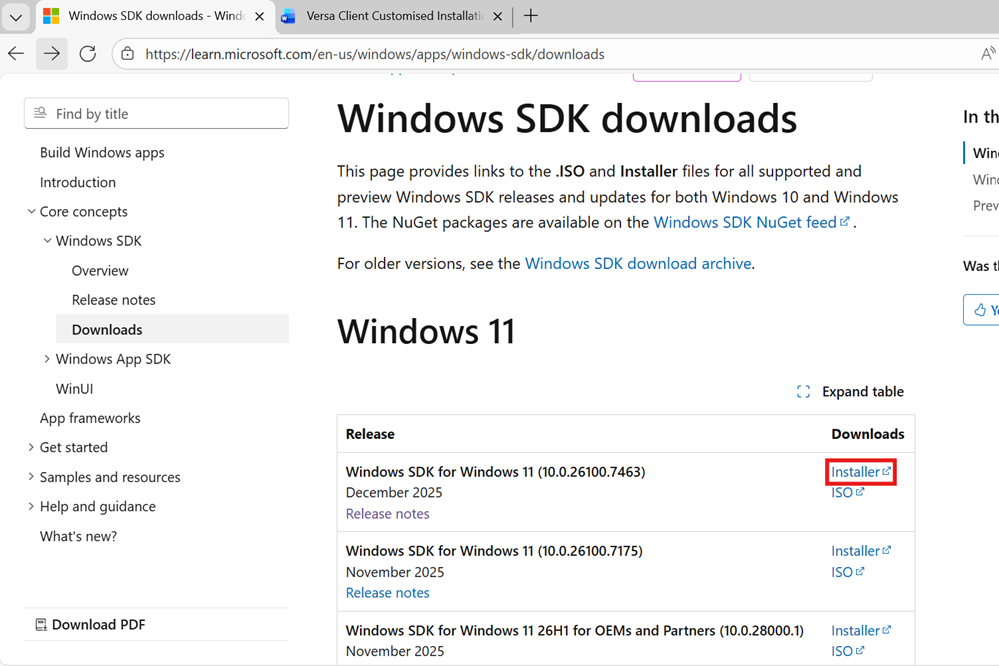
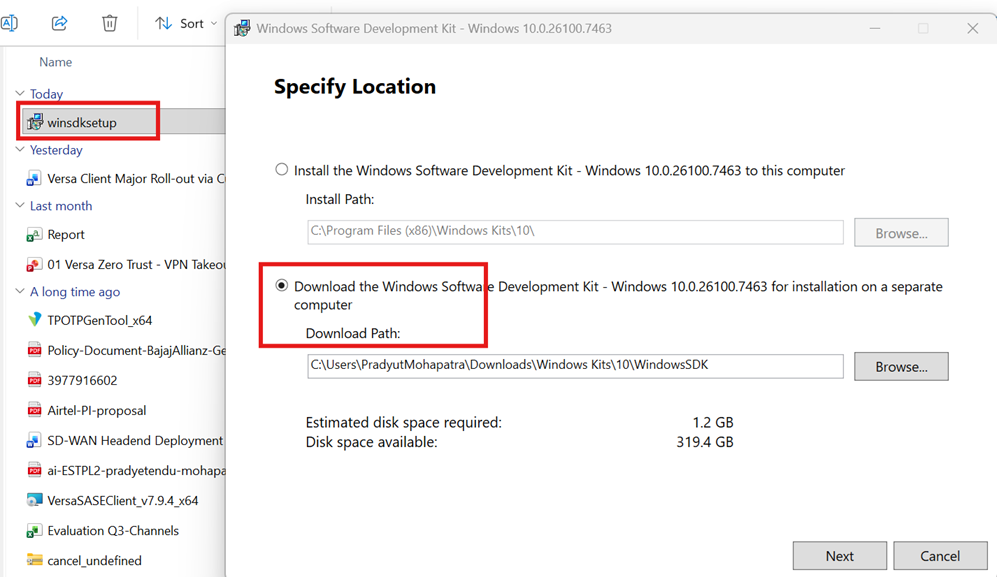
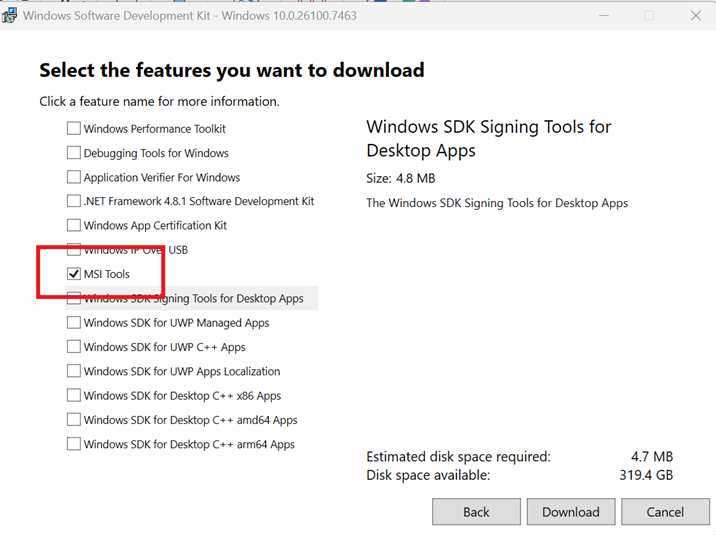
Only select MSI Tools and next click download.
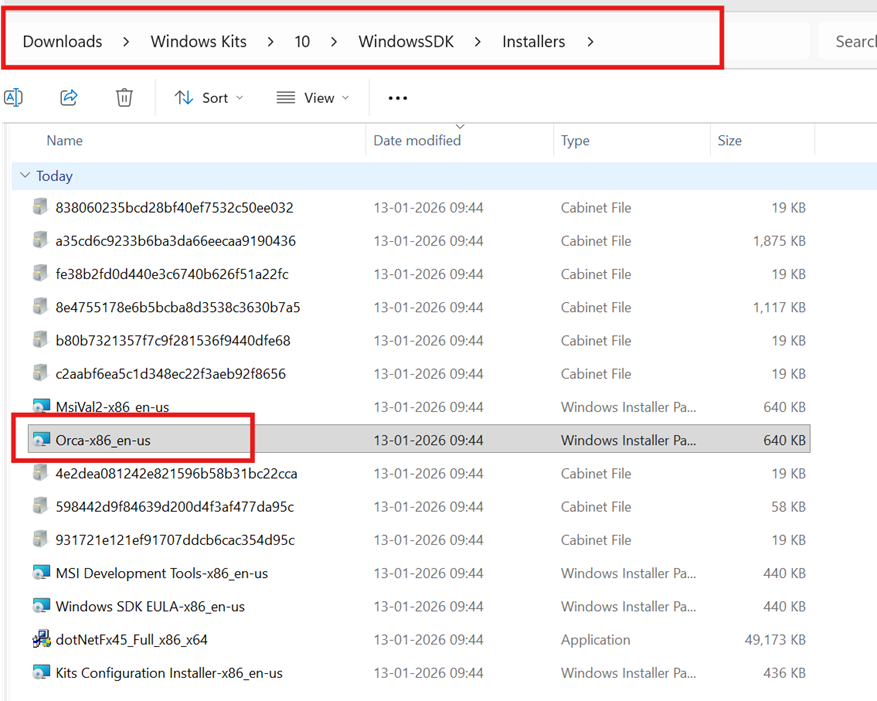
You will see a new folder “Windows Kits” inside download folder. Go to Installers and run “Orca-x86_en-us”
Versa SASE Client Configuration via Orca
Prerequisites:
- Versa SASE Client MSI Installer.
- Orca MSI editing tool.
Configuration Steps:
- Open with Orca: Right-click the downloaded MSI file and select Edit with Orca.
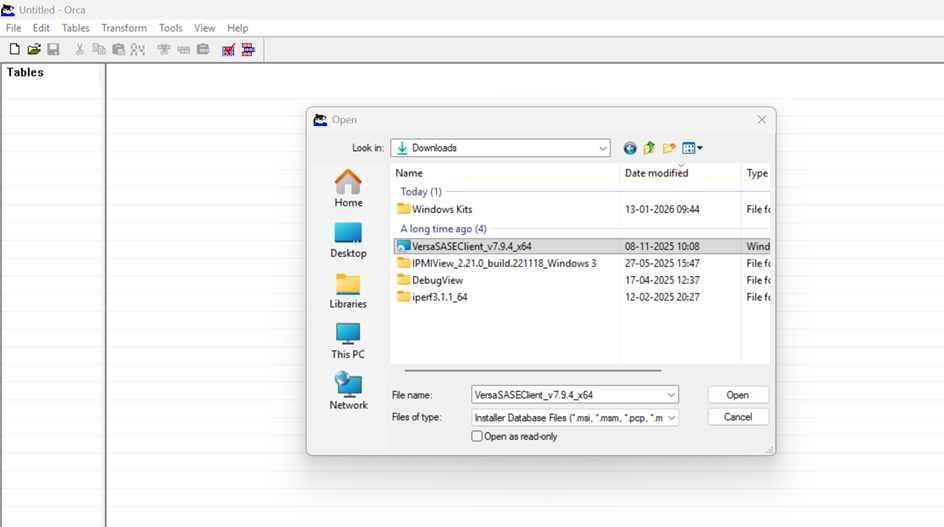
- Create New Transform: In the Orca interface, navigate to the top menu, click on Transform, and select New Transform.
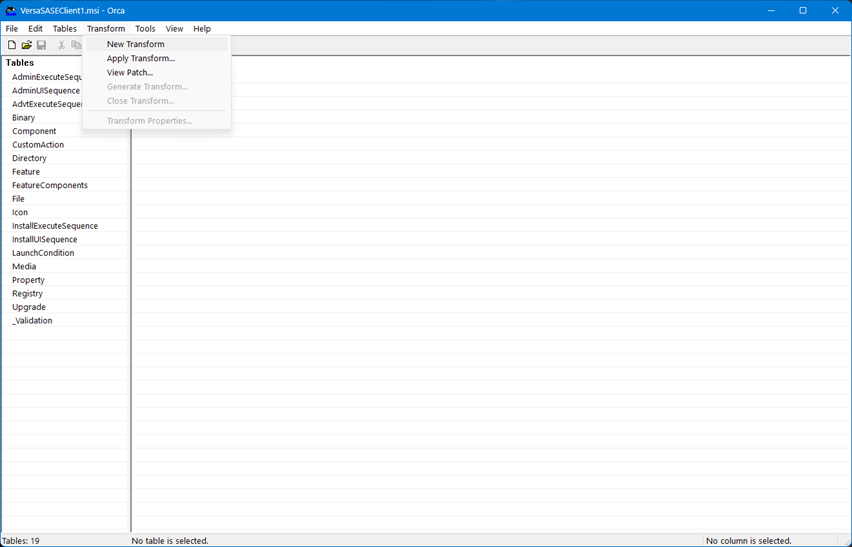
- Locate Properties: In the table on the left-hand side, scroll down and locate the Property table. Click to select it.
- Add New Property: Right-click anywhere in the Right-Hand Side pane (where the properties and values are listed) and select Add Row (or Add New).
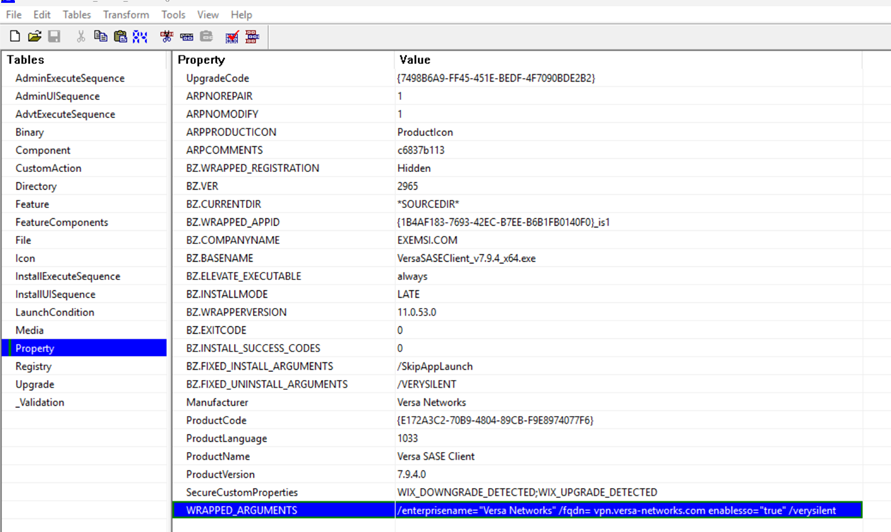
Configure WRAPPED_ARGUMENTS: Enter the following details for the new property:
- Property: WRAPPED_ARGUMENTS
- Value: /enterprisename="<Enterprise-Name>" /fqdn=<portal-fqdn> enablesso="true" /verysilent
(Note: Replace <Enterprise-Name> and <portal-fqdn> with your actual Enterprise Name and Portal FQDN values).
- Save the transformed file as a new MSI
- Go to the File menu at the top.
- Select Save Transformed as and save it with a new name, for ex. VersaSASE_Custom.msi.
- Ensure the "Save as type" dropdown is set to Windows Installer (*.msi).
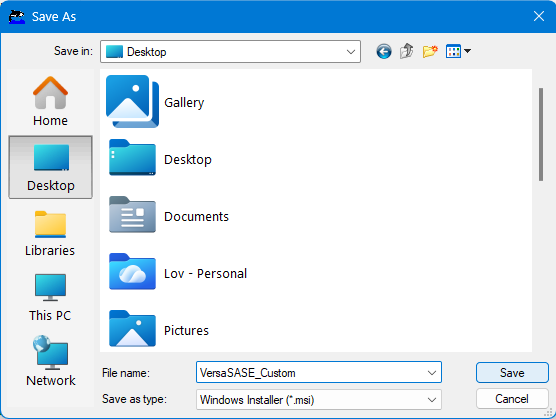
- Click Save.
Deployment and Execution
Installation Steps:
You now have a customized MSI file that contains the enterprise parameters. You can push this via GPO, SCCM, or Intune using the command:
- DOS: msiexec /i "VersaSASE_Custom.msi"
- GPO / SCCM: Just point the software distribution tool to the VersaSASE_Custom.msi file. You do not need to fill out any "Arguments," "Parameters," or "Modifications" fields. The file already has the parameters baked in.
Verification
Post-Installation Check:
- Launch Client: After the client is successfully installed, double-click the application icon to open it.
- Check Registration Fields: Click on Register. You should observe that the Enterprise Name and Portal FQDN fields are already pre-populated based on the values provided in the customized MSI file.
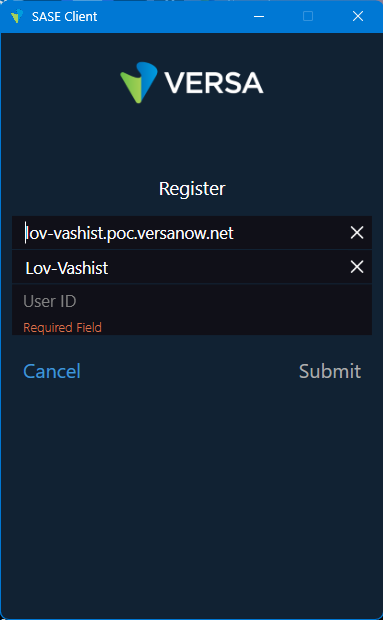
- Final User Step: The user simply needs to enter their corporate email address and click Submit. They should be immediately redirected to the configured SSO provider to complete the registration process.
